Does Gmail Compress Your Photos? What Actually Happens to Attached Images
Short answer: it depends on how the photo gets into the email. Gmail treats a proper file attachment differently from an inline/embedded image, and only one of those two gets touched.
Attachment vs. inline image
- Attached as a file (the paperclip icon, or dragging a file onto the compose window as an attachment): Gmail does not recompress or resize it. The exact bytes you sent are what the recipient downloads — same resolution, same file size, same quality.
- Inserted inline (using “Insert photo” so the image displays directly in the body of the email, the way it looks in a photo-heavy newsletter): Gmail can resize this for display purposes, since it’s being rendered as part of the message rather than delivered as a standalone file.
If you’ve ever attached a photo and had it “look compressed” on the receiving end, the more common explanation isn’t Gmail — it’s that the original photo was already heavily compressed by whatever app or messaging service touched it earlier (repeatedly re-saving a JPEG through several apps compounds quality loss each time), or the recipient’s own email client is generating a low-resolution preview thumbnail that looks worse than the actual attached file.
So why compress before sending at all
If Gmail isn’t going to touch your attachment, compressing beforehand is still worth doing, for reasons that have nothing to do with Gmail silently degrading anything:
- Faster to send and receive, especially on a slower connection or mobile data.
- Less storage used on both ends — Gmail attachments count against your Google Drive storage quota once received.
- You control the quality tradeoff yourself, rather than sending an unnecessarily large file (a 4000×3000 phone photo) when the recipient only needs something screen-sized.
- You stay under the size limit — Gmail caps attachments at 25MB combined per email; see fitting a batch of photos under Gmail and Outlook’s limits for the exact numbers and how to batch-compress a whole folder to fit.
Compressing a batch before you attach
- Import the photos you’re about to send.
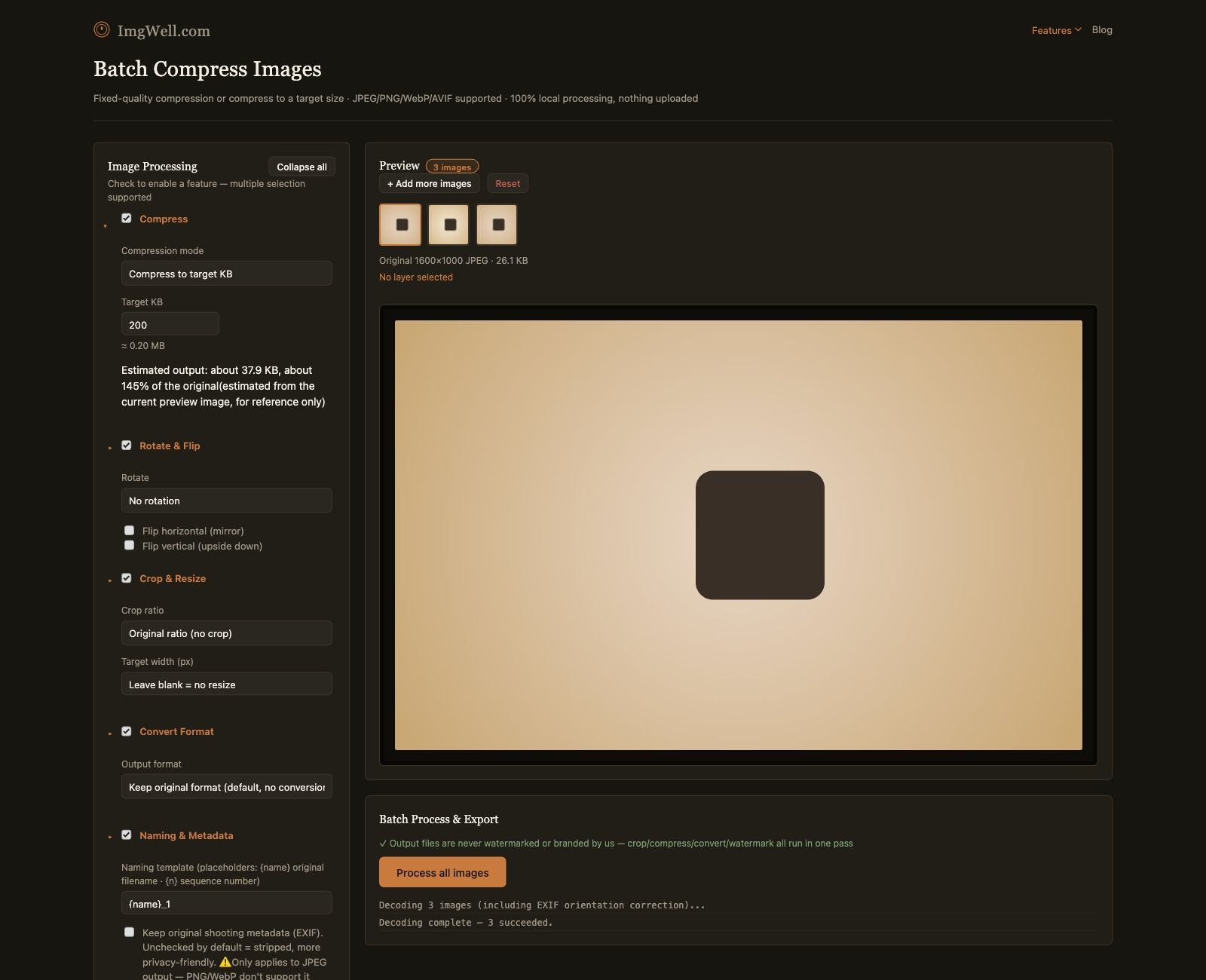
- Open Compress and either pick a quality level (0.75–0.85 keeps photographic detail while cutting file size substantially) or switch to Compress to target KB if you have a specific size in mind per photo.
- Process the batch and attach the results — same photos, meaningfully smaller, with no visible quality loss at normal viewing sizes.
Sending photos of documents or receipts instead? Attaching one PDF is often tidier than a dozen separate images: Bulk Image to PDF merges the batch into a single file, and compression runs in the same step.
This runs entirely in your browser, so the photos never get uploaded anywhere in the process — they’re compressed locally and you attach the result directly from your device.