How to Compress Photos to Fit Gmail's 25MB and Outlook's Attachment Limits
“Message too large” or a stalled upload bar is almost always the same problem: too many photos, not compressed enough, going through an email provider with a hard size cap. Here’s what those caps actually are, and how to fix it for a whole folder at once instead of removing photos one at a time until it sends.
The actual attachment limits
- Gmail: 25MB per email, combined across all attachments. Gmail will silently switch to a Google Drive link instead of a direct attachment once you cross this, which isn’t always what you want if the recipient doesn’t use Google Drive.
- Outlook.com / Microsoft 365: 20MB by default (some Microsoft 365 business plans raise this to 25MB or higher, depending on admin settings).
- Yahoo Mail: 25MB.
- iCloud Mail: 20MB, but Apple’s Mail Drop feature can push much larger files through iCloud links instead of true attachments.
A single modern phone photo is commonly 3–8MB. Attach five or six of them straight off a recent phone and you’re already at or past most of these limits — before you’ve even gotten to a “few photos from the whole event.”
Why phone photos are the usual cause
Phones have been shooting at higher resolutions and less aggressive compression every year — a photo that would have been 1–2MB a few years ago is routinely 4–8MB now on a recent flagship phone. Nothing about the photo looks different at that size; the extra megabytes are mostly headroom you don’t need for something that’s going to be viewed on a screen, not printed at full resolution.
Fitting a batch of photos under a size limit
This is what target-size compression is built for — instead of guessing at a quality percentage and checking the result, you set the actual limit you need and the tool works backward from there.
- Import the whole batch you’re planning to send (folder import works, so you don’t have to pick files one at a time).
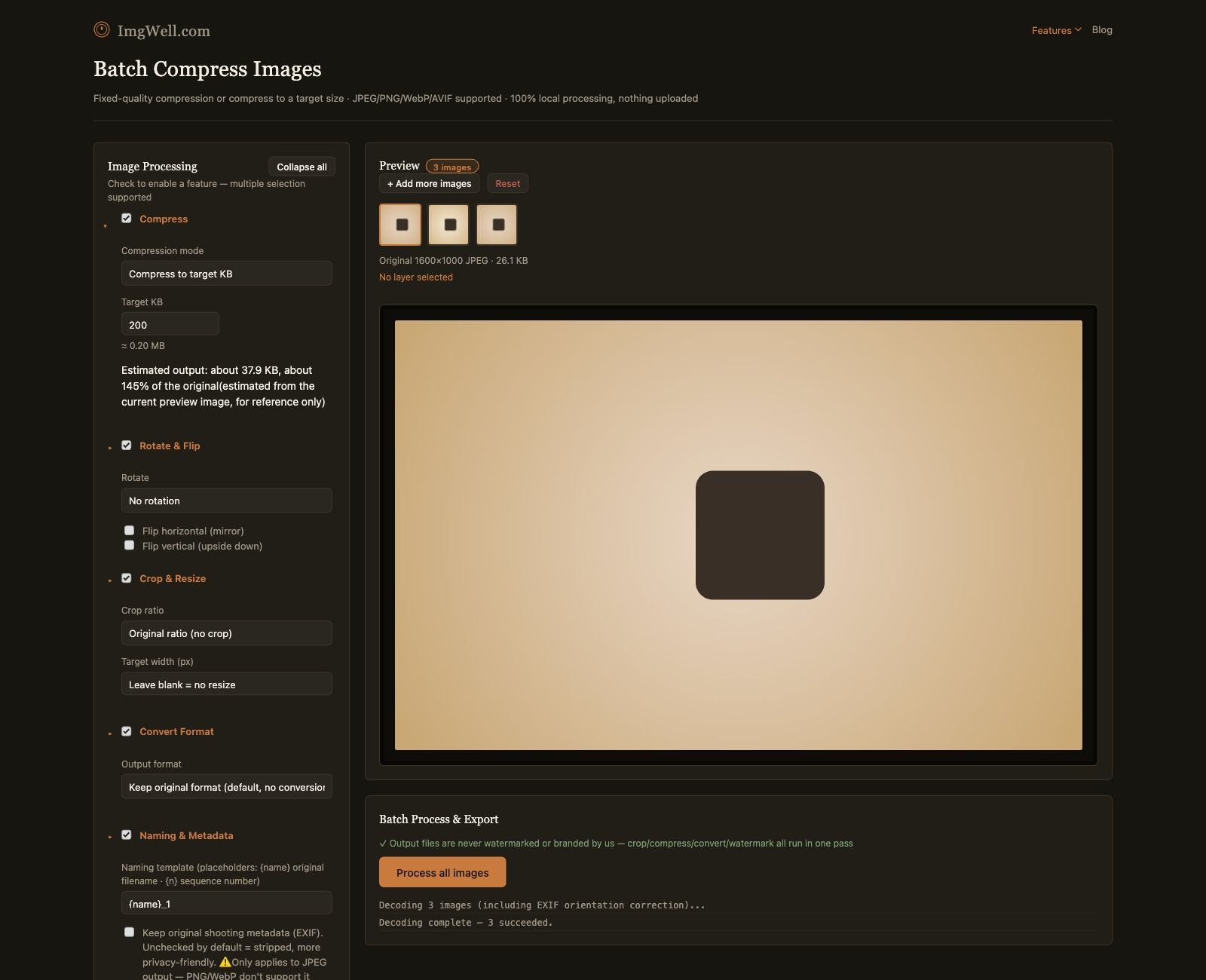
- Open Compress, switch the mode to Compress to target KB, and set a target — for a batch of 5 photos going through Gmail’s 25MB cap, something like 4000KB (4MB) per photo leaves comfortable room.
- Process the batch. Every photo comes out at or under your target size, ready to attach as a group.
One thing worth knowing: extremely detailed or noisy photos may not compress below a certain size no matter how low the quality setting goes — if a handful of images in a batch don’t make the target, that’s the content itself being resistant to compression, not a setting to push further. In that case, splitting the batch across two emails is usually faster than chasing a smaller number on one specific stubborn photo.
Need each photo under a fixed size rather than the whole email under a limit? Forms and portals often ask for a specific file size, like 100KB — how to compress an image to 100KB covers that case, including why a 99KB file can still be rejected.
When the recipient wants one file, not twenty attachments
If you’re sending scanned forms, receipts, or photos of documents rather than holiday pictures, a job application or an expense report usually wants a single PDF. Bulk Image to PDF combines the whole batch into one PDF, one page per image, and can compress the images in the same pass, so the PDF stays under the attachment limit too.