How to Batch Convert a Folder of Photos to WebP (No Software Install)
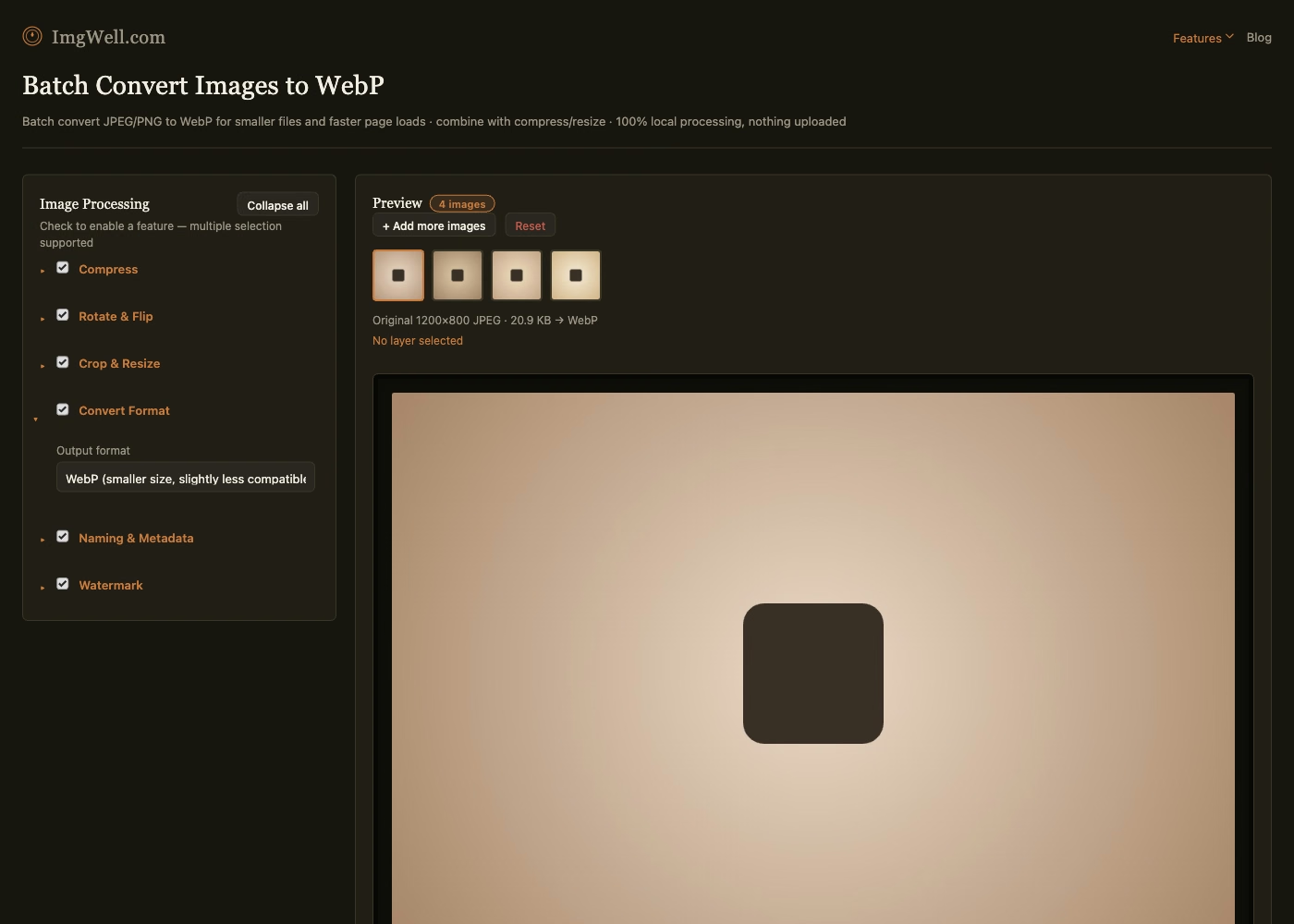
If the plan is “open each photo in an editor, export as WebP, repeat,” that’s the part of the task that doesn’t need to exist — a folder of any size converts in the same handful of steps as a single photo.
Why this usually turns into more work than it should
Most people’s first instinct is either a desktop image editor (fine for one photo, painful for fifty) or a one-file-at-a-time online converter (same problem, plus re-uploading each file individually). Neither is actually built around “I have a folder, I want the same output format for all of it” — they’re built around single files, and batching becomes something you bolt on yourself by repeating the same steps manually.
What a real batch conversion needs to handle
- Importing a whole folder at once, not one file per upload.
- Applying the same setting to every file without re-configuring per image.
- Not re-uploading anything, if the photos are private, unpublished, or just large enough that repeated uploads are slow.
- Keeping each output file distinguishable — if the tool doesn’t handle naming sensibly, you end up with fifty files all named the same thing after conversion.
Doing it in one pass
Our batch format converter runs entirely in your browser — the whole folder is processed locally, nothing is sent to a server, which also means there’s no upload wait regardless of how many photos or how large they are.
- Import the whole folder in one action rather than selecting files individually — this is the step that actually eliminates the manual, one-at-a-time work.
- Open Convert Format and select WebP. This setting applies to every image in the batch, not just the one currently shown in the preview.
- If you want predictable output filenames instead of the originals, open Rename and set a naming pattern once — it applies across the whole batch the same way the format setting does.
- Click Process all images. Every photo in the folder converts in the same pass and downloads together.
The entire point of a batch tool is that step 2 and step 3 are each set once, not once per file — that’s what actually saves the time, more than WebP’s compression efficiency does on its own.