How to Compress Images for a Better PageSpeed Insights / Core Web Vitals Score
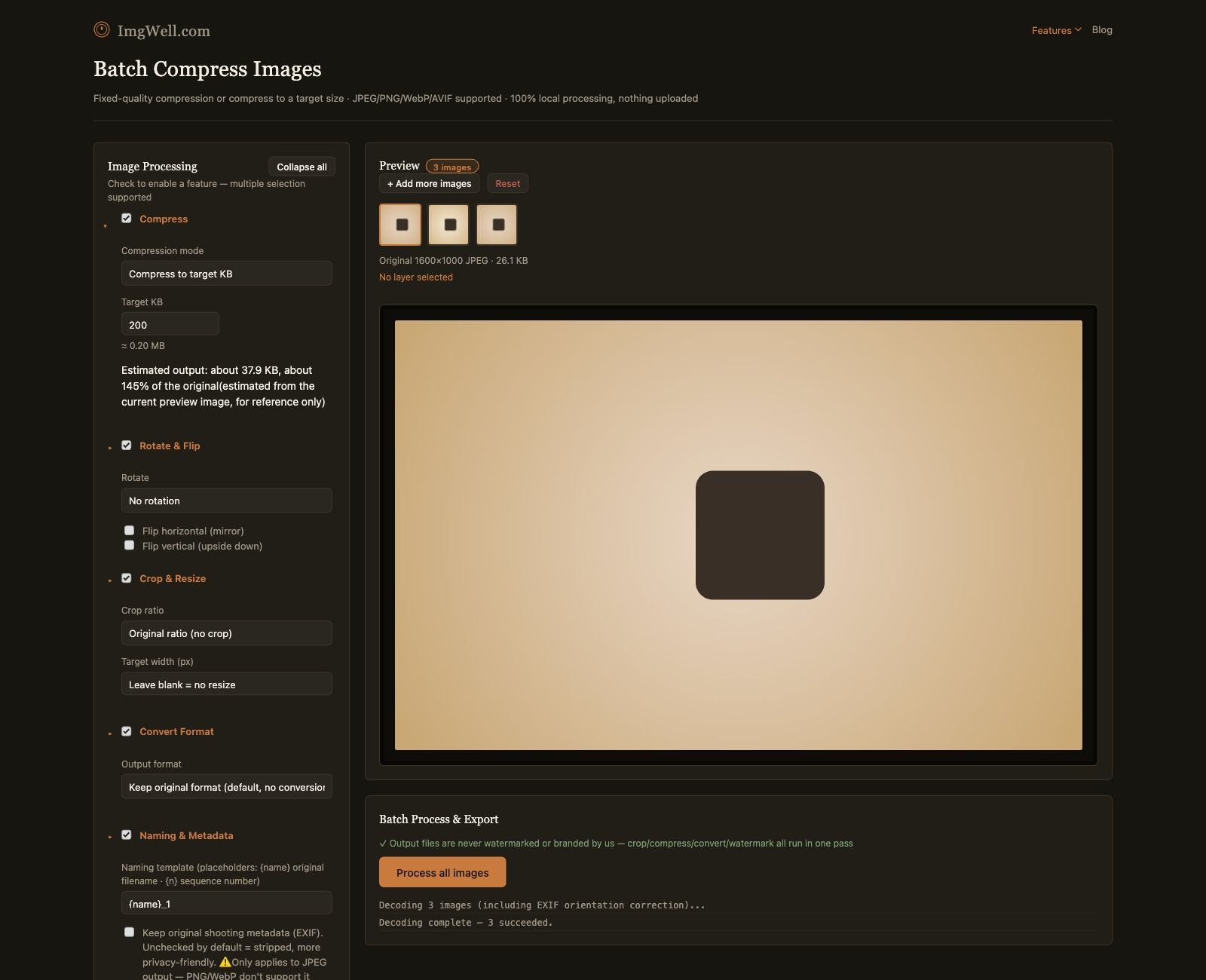
Run a page through PageSpeed Insights and get flagged for “Largest Contentful Paint” or “Properly size images,” and the fix is almost always the same regardless of what the report’s wording implies: the images are heavier than they need to be for how they’re actually displayed.
What PageSpeed Insights is actually measuring
Largest Contentful Paint (LCP) measures how long it takes the biggest visible element (very often a hero image or header photo) to fully render. A 4MB hero image on a typical connection can single-handedly push LCP into the “poor” range, which affects both the score and, for many sites, actual Google ranking signals.
The “Properly size images” and “Efficiently encode images” audits specifically flag images that are either larger in pixel dimensions than they’re displayed at, or saved in a heavier format than necessary (a photographic JPEG that could be a smaller WebP file at the same visual quality, for instance).
Two separate problems, two separate fixes
It’s worth being precise about which of these is actually the issue, because the fix is different:
- Wrong pixel dimensions — a 4000px-wide photo displayed in a 800px-wide content column. No amount of compression setting fixes this; the image needs to be resized down to roughly the dimensions it’s actually shown at (see the resize tool) before compression makes a meaningful difference.
- Right dimensions, but heavy encoding — an image that’s already close to the right pixel size but saved at unnecessarily high quality, or in a less efficient format. This is what compression and format conversion actually fix.
Most real sites have a mix of both across their image library, especially older content where images were uploaded once and never revisited.
Fixing a batch of existing site images
- Pull the images you’re auditing into the tool — folder import if it’s an entire uploads directory.
- If some images are clearly oversized for where they’re displayed, open Crop & Resize first and set a target width matching your actual layout (commonly 1200–1600px for full-width content images).
- Open Compress and set quality in the 0.75–0.85 range for photographic content — this is well past the point where most people can see a difference on a screen, while cutting file size substantially compared to default camera/export quality.
- Optionally, also convert to WebP in the same batch — PageSpeed Insights’ “serve images in next-gen formats” check specifically looks for this.
- Process and re-upload, then re-run PageSpeed Insights to confirm the LCP number actually moved — a heavier hero image is usually the single biggest lever on that metric, more than any other individual fix.