How to Convert PNG to WebP Without Losing Transparency
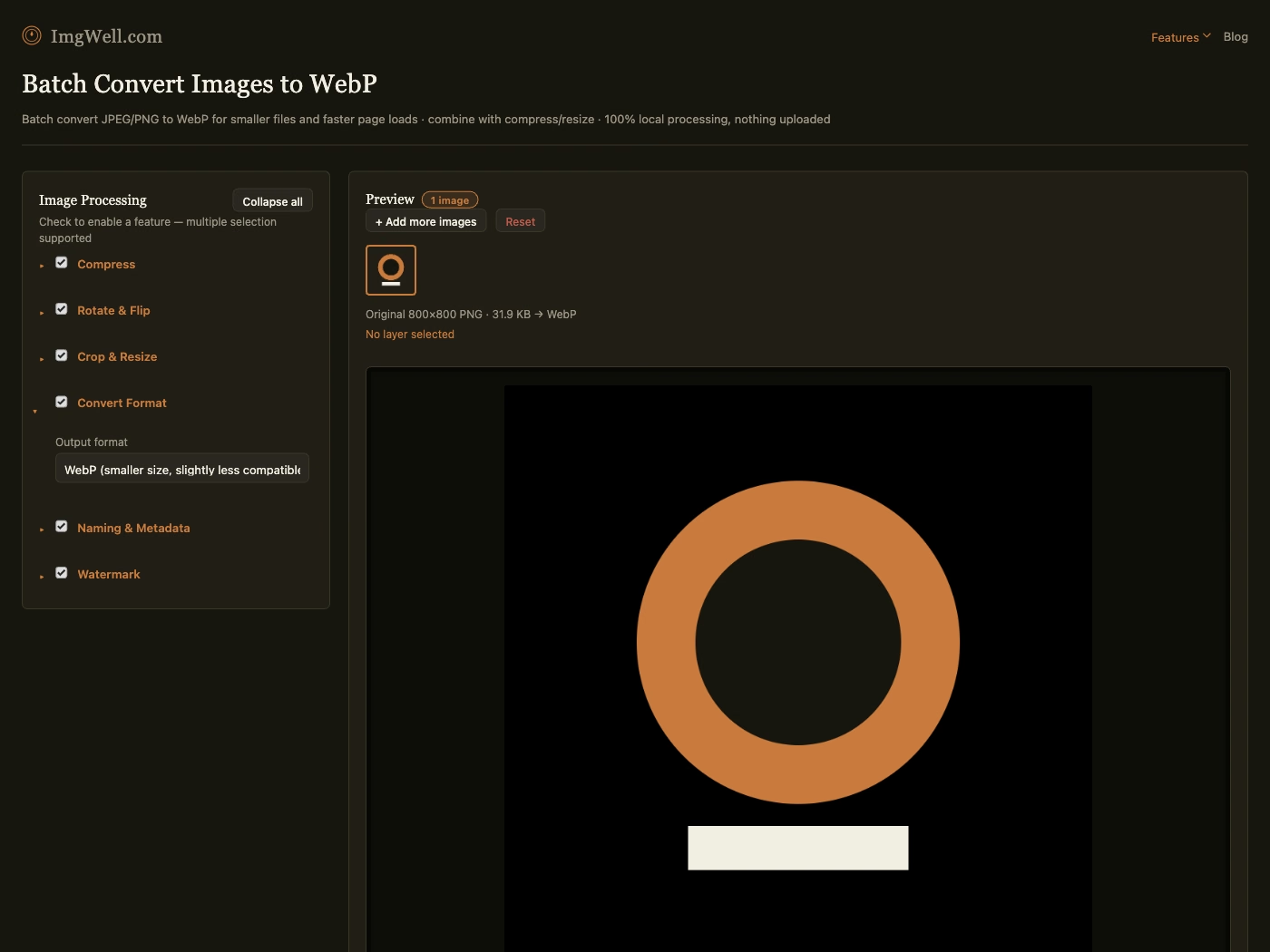
The short answer: WebP fully supports transparency, so converting a PNG with a transparent background to WebP doesn’t require giving up that transparency, or flattening it onto white first. If a conversion tool is asking you to pick a background color before exporting, that’s the tool’s limitation, not a WebP one.
Why this question comes up at all
PNG has been the default format for anything transparent — logos, icons, UI graphics — for so long that “transparent” and “PNG” feel like the same requirement. JPEG reinforces the confusion in the other direction, since JPEG genuinely has no alpha channel at all and would force a flattened background. WebP sits in neither category: it has full alpha channel support, the same as PNG, just with more efficient compression.
What actually happens to transparency during conversion
- The alpha channel is preserved exactly — every pixel’s transparency value carries over, including partial transparency (soft edges, drop shadows, anti-aliased icon edges), not just fully-transparent or fully-opaque pixels.
- File size still drops significantly. WebP’s compression advantage over PNG applies to transparent images too — a logo or icon PNG converted to WebP commonly comes out considerably smaller, at visually identical quality, transparency included.
- Nothing needs to be flattened first. If you’re converting through a tool that requires choosing a matte/background color before exporting to WebP, that’s an unnecessary extra step being imposed by that specific tool, not a real format requirement.
Converting a batch without losing transparency
Our batch format converter preserves the alpha channel automatically — there’s no separate “keep transparency” setting to remember, because there’s no scenario where converting to WebP requires giving it up.
- Drop in your PNGs (folder import works for a whole batch of logos or icons at once).
- Open Convert Format and select WebP — no background color prompt, because none is needed.
- Process the batch and download. Each output file is WebP, same transparent background, smaller file size.
The one case where you’d still want PNG: if the image is going somewhere that specifically doesn’t support WebP yet (some older email clients, for instance) — that’s a destination-compatibility question, not a transparency one.