How to Split a Photo Into an Instagram Grid (Without It Looking Cut Off)
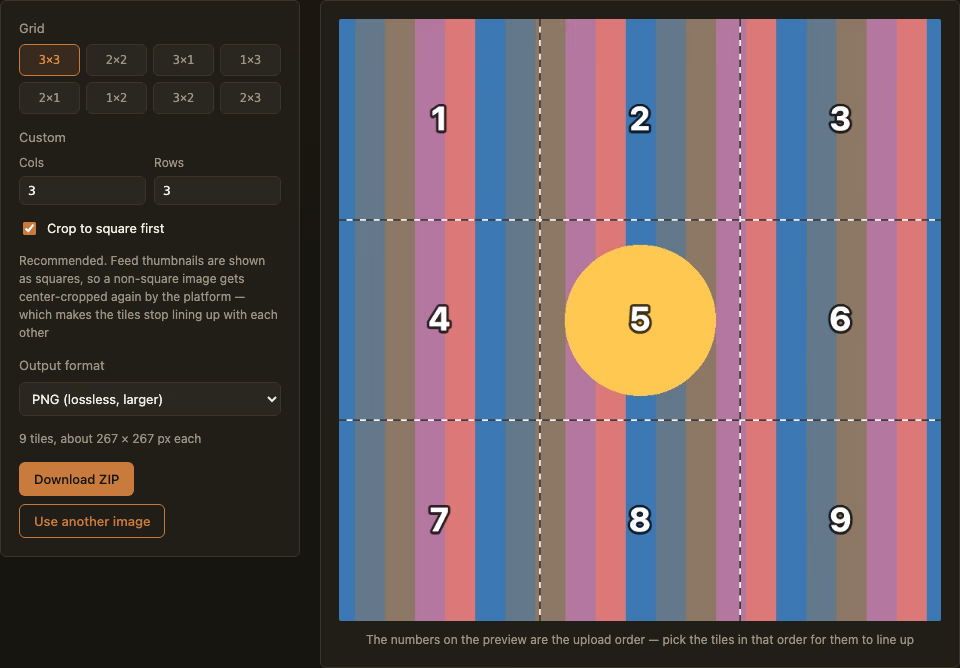
Scroll through a brand or creator account with a striking panoramic banner across its top nine posts, and it’s not one image — it’s one photo cut into nine tiles and posted individually, so the grid reassembles into a single picture once someone views the profile as a whole. The effect is simple in concept, but it’s also the kind of thing that goes visibly wrong in a specific, avoidable way if you skip one step.
The one thing that actually breaks this effect
Instagram’s feed grid displays every post as a square thumbnail, regardless of the original photo’s aspect ratio. If you slice a wide, non-square photo directly into a 3×3 grid and upload the tiles as-is, Instagram doesn’t show your tiles edge-to-edge — it re-crops each one down to a square on its own, which throws off the alignment between adjacent tiles. The fix isn’t a fancier slicing algorithm; it’s cropping the whole photo to a square before slicing it, so each resulting tile is already the exact shape the feed will display it as, with nothing left for Instagram to crop away.
How to slice one
- Open the Image Grid Splitter and drop in your photo.
- Pick a grid size — 3×3 is the classic Instagram layout, but any rows×columns works (a 3×1 strip, for instance, is common for a single wide panoramic post split across three consecutive uploads).
- Leave “Crop to square first” checked unless you have a specific reason not to — this is the step described above, and skipping it is the most common way this effect ends up looking misaligned once it’s live.
- Choose PNG (lossless, larger files) or JPEG (smaller, generally fine for photos) and download the ZIP.
Each tile comes out numbered in the order you’ll need to upload it — for a 3×3 grid that reads left-to-right, top-to-bottom, remember Instagram’s feed fills newest-post-first, so the posting order needs to run in reverse of normal reading order to land right-side-up. The numbering handles the slicing math for you; it doesn’t reorder your upload sequence for you.
Everything runs locally in your browser — the photo is never uploaded to a server, and there’s no account needed.
Where this doesn’t help
This tool solves the slicing and numbering — it doesn’t manage your posting schedule or protect the effect once other posts start appearing in between (post something else while you’re partway through uploading the grid, and every tile posted after that shifts out of alignment). For a grid meant to survive being viewed later rather than just for the moment right after you finish uploading, that’s worth planning around before you start, not after.