Why Can't I Select or Copy Text From This PDF?
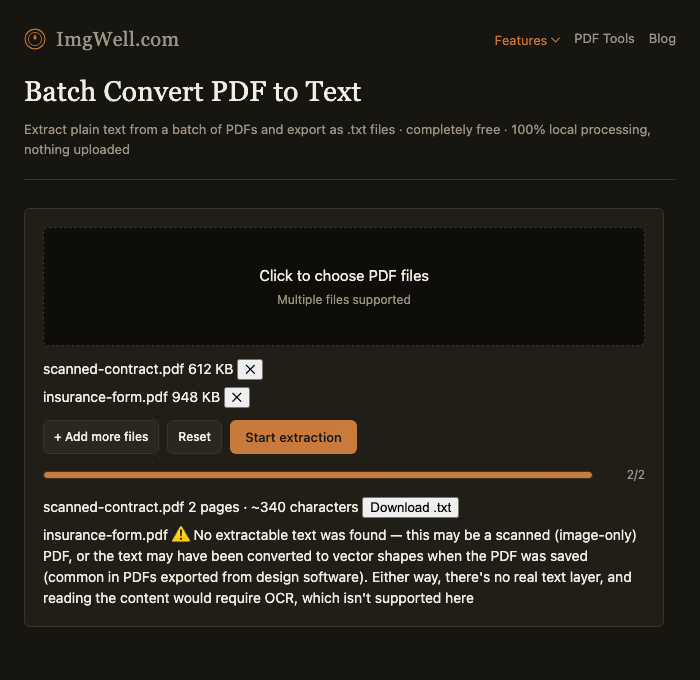
You open a PDF, the text is perfectly legible — a contract clause, a form field, a paragraph of body copy — and then you try to select it, copy it, or run it through a text-extraction tool, and nothing happens. Either the selection tool just draws an empty box, or the extracted output comes back blank.
The instinct is to assume the tool is broken. Most of the time, it isn’t — the PDF simply doesn’t contain any actual text data, and no tool, however good, can extract characters that were never stored as characters in the first place.
The 30-second check
Open the PDF in any reader — your browser’s built-in viewer, Adobe Acrobat, whatever — and try dragging your mouse across the text like you’re selecting it.
- It highlights normally → there’s a real text layer, and any competent text-extraction tool should be able to read it.
- Nothing highlights, you just get an empty selection box → there’s no text layer. Extraction failing isn’t a bug, it’s the expected outcome.
If it’s the second case, one of two things is going on.
Cause 1: it’s a scanned page
The most common cause. The “page” is actually an image — a photo of a printed document, a fax, an old paper scan — wrapped in a PDF container.
The characters you’re reading are just pixels arranged to look like letters; the PDF file format has no idea what any of it actually says. Getting real text out of a scanned page requires OCR (optical character recognition) — genuine recognition, not extraction, the same technology used to read text out of a photo.
Cause 2: the text was converted to outlines
Less common than a scan, but far more confusing when it happens — because this kind of PDF isn’t scanned and doesn’t contain any images at all, and the text still won’t extract.
Some certificates, official forms, and posters get their text “converted to outlines” (sometimes called “creating outlines” or flattening) when they’re exported — every character gets turned into a filled vector shape instead of being drawn with an actual font. This is usually done so the document looks identical everywhere, regardless of whether the viewer’s computer has the right font installed.
The tradeoff: once that happens, the PDF no longer stores any information about which character each shape represents — just lines and fills. This isn’t a compatibility quirk in any particular tool. Open the same file in Adobe Acrobat and try to select that text with the mouse — it won’t select there either. The character data is genuinely gone from the file, so reading the text layer directly is a dead end, including for AI-based tools.
There’s a detail worth noticing here, though: outlining only throws away the structured “this shape means this character” data — the shapes themselves are still exactly as legible to the eye as before. Which means if you stop trying to read a text layer and instead recognize the shapes visually, the same way you’d read text in a photo, outlined text turns out to be readable after all. More on that below.
Neither case needs a separate tool anymore
Previously, both of these meant tracking down a separate OCR tool yourself. Now batch PDF to text detects the missing text layer and switches to built-in OCR automatically:
- Scanned page: when a file has no text layer at all, the tool renders each page as an image and runs it through OCR — no need to convert to images and find another tool first.
- Outlined text: this is functionally the same problem as a scan — no text layer, but the visible shapes are readable — so it goes through the exact same automatic OCR path. You don’t need to diagnose which cause you’re dealing with, and you don’t need to track down an unflattened source file.
Worth being clear about one thing: OCR isn’t the same as reading a real text layer. A text layer is exact data — extracting it is 100% accurate. OCR is visual recognition — it’s reliable on printed text and clean scans/renders, but the occasional character can still be misread, and formatting (underlines, boxes, multi-column layouts) doesn’t always carry over perfectly. For anything involving amounts, dates, or contract terms, check the downloaded text against the original file before relying on it.
Checking a batch of PDFs at once
You don’t need to figure out ahead of time whether a file is scanned or outlined — just run the whole batch through:
- Open batch PDF to text and drop in every PDF you want to process at once.
- Click “Start extraction.” Everything runs locally in your browser — nothing is uploaded to a server.
- Files with a real text layer come back in seconds and download as .txt. Files with no text layer — scanned or outlined, doesn’t matter which — automatically fall back to OCR, and the result is flagged as OCR-derived so you know to double-check it. Only the rare case where OCR itself can’t make out any text (an image too blurry or low-resolution to read) gets marked as a genuine failure.
If what you’re starting from is already a photo or screenshot rather than a PDF, Extract Text (OCR) runs on the same underlying engine.