How to Batch Convert HEIC Photos to JPG (No Software Install)
If you’ve ever AirDropped or emailed photos from an iPhone to a Windows PC and found half of them won’t open, this is why: since iOS 11, the iPhone camera saves photos as HEIC instead of JPG. It’s a genuinely better format — smaller files at the same quality — but support for it outside Apple’s own ecosystem is still inconsistent.
Where HEIC actually breaks
- Older or unpatched Windows installs — Windows 10/11 can open HEIC, but only after installing a separate HEIF codec extension most people never knew they needed.
- Uploading to websites — plenty of forms, CMSes, and image tools still reject HEIC outright or silently fail on it.
- Sharing with someone on Android or an older device — HEIC support there is inconsistent depending on OS version and app.
- Some browsers can’t even preview it — a HEIC file dropped into Chrome sometimes just shows a broken image icon instead of opening.
JPG doesn’t have any of these problems. It’s not a better format technically, but it’s the one format everything can open, which is what actually matters once you’re trying to send or upload the photo somewhere.
Why converting one at a time doesn’t scale
A photo dump from an iPhone is rarely just one file — it’s often dozens from an event, a trip, or a shoot. Converting each one individually in an editor means opening, exporting, and re-saving the same way, once per photo. Most free online HEIC-to-JPG converters also only take one file at a time, and worse, they work by uploading your photo to their server to convert it — not ideal if the photos are personal and you’d rather they never leave your device.
Doing it in one pass
Our batch HEIC to JPG converter decodes HEIC and converts it entirely in your browser — nothing is uploaded, so the whole folder converts locally regardless of how private the photos are or how many there are.
- Import the whole folder of HEIC photos at once rather than one at a time.
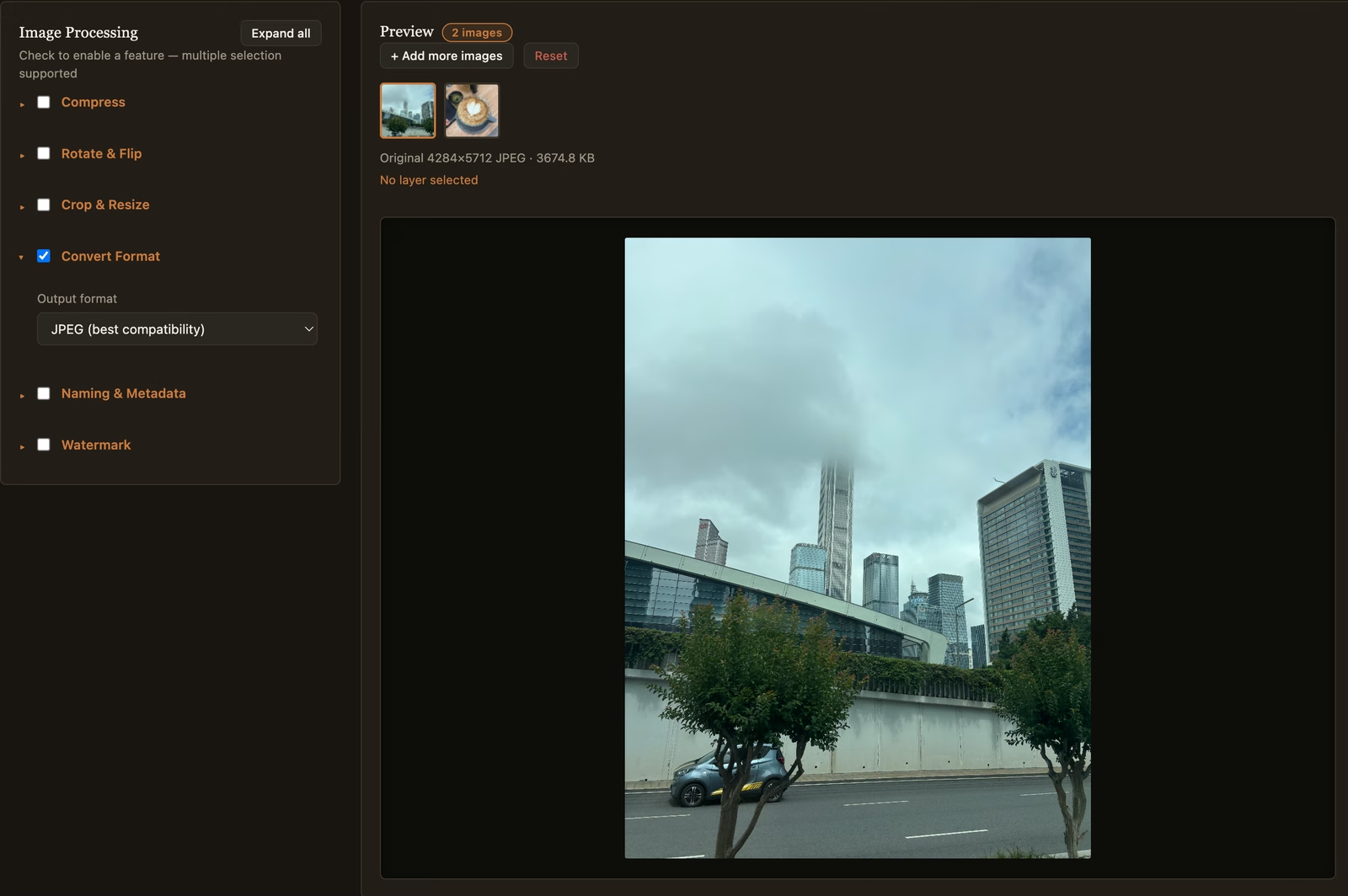
- Open Convert Format and select JPEG. This setting applies to every photo in the batch, not just whichever one is currently shown in the preview.
- Click Process all images. Every HEIC file decodes and re-encodes as a JPG in the same pass, and downloads together.
Because the decoding happens locally, this also works for HEIC files that a browser can’t natively preview on its own — the photo doesn’t need to open correctly in the tab first for the conversion to succeed.
A note on quality
HEIC’s compression is different from JPEG’s, so a straight conversion won’t be byte-for-byte identical — but at default quality settings the difference isn’t visually noticeable for ordinary photos. If file size matters more than universal compatibility (for example, you’re only sharing with other Apple devices or modern browsers), WebP is worth considering instead of JPG — it compresses even more efficiently than HEIC in most cases, at the cost of the same “not everything can open it” tradeoff HEIC already has.