Instagram Post, Story & Profile Picture Sizes (2026): Exact Pixel Dimensions
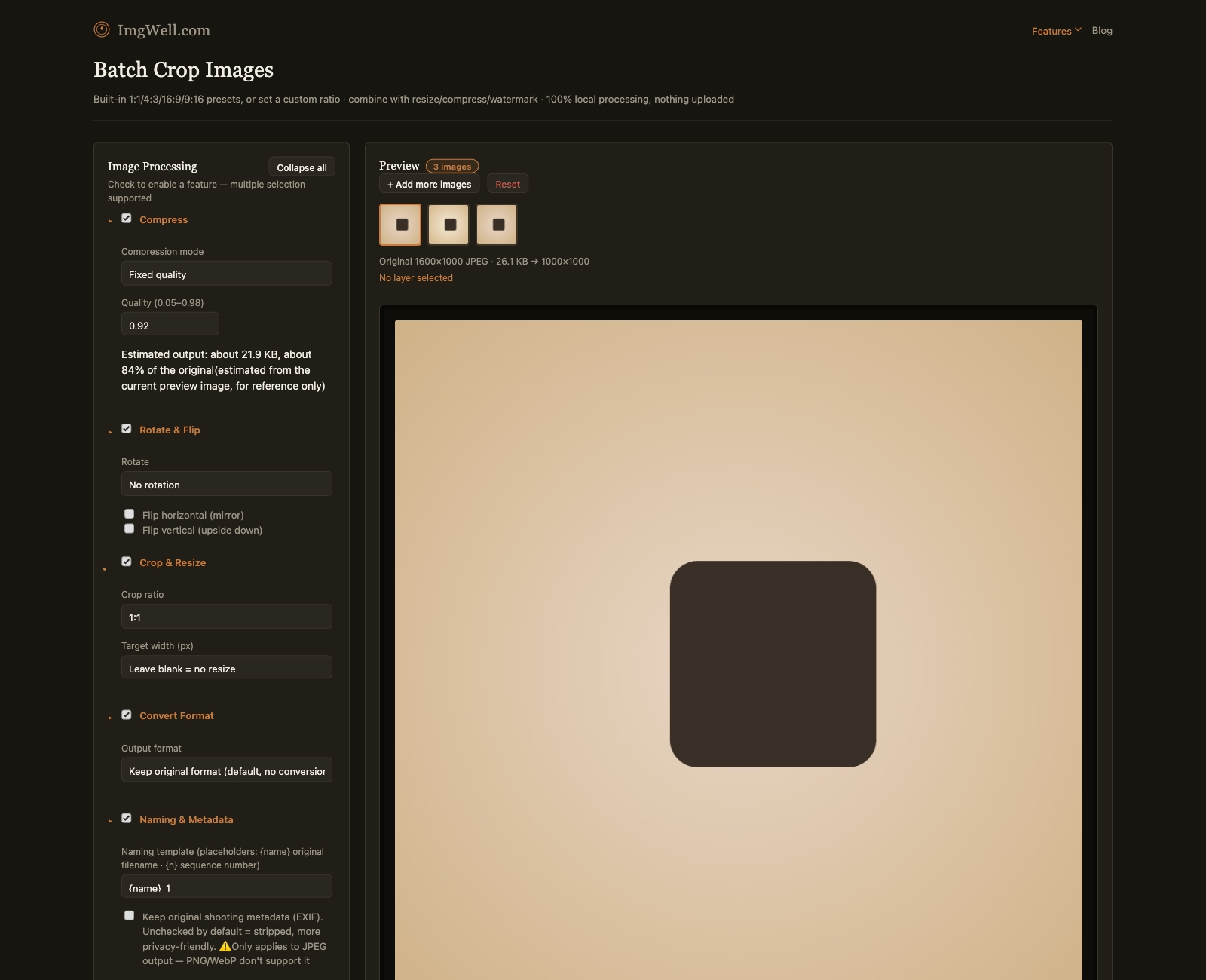
Instagram will crop or letterbox a photo automatically if you upload it in the wrong ratio — which is exactly why photos that look fine on your camera roll end up with awkward crops, black bars, or a zoomed-in version of the shot once they’re posted. Setting the ratio yourself before upload avoids letting Instagram’s own algorithm guess where the important part of the photo is.
The actual dimensions
- Feed post (square): 1080×1080px, ratio 1:1. Still the safest default for a grid that needs to look consistent.
- Feed post (portrait): 1080×1350px, ratio 4:5. The tallest ratio Instagram displays in-feed without cropping; commonly used because it takes up more vertical scroll space than a square post.
- Feed post (landscape): 1080×608px, ratio 1.91:1.
- Stories / Reels: 1080×1920px, ratio 9:16. Anything shot in a different ratio gets letterboxed with blank bars unless you crop it to this first.
- Profile picture: displayed as a circle, but the source image should be square — 1:1, minimum 320×320px.
Why the “safe zone” matters for Stories and Reels
Instagram’s own UI (the profile icon, caption area, sticker tray) overlaps the top and bottom of a 9:16 Story or Reel. If the subject or any text in your image sits right at the very top or bottom edge, it can end up covered by Instagram’s interface. Leaving a bit of margin at the top and bottom when framing — rather than filling the entire 9:16 frame edge-to-edge with critical content — avoids this.
Batch-cropping a folder of photos before upload
- Import the batch (folder import works for a whole shoot at once).
- Open Crop & Resize and pick the ratio for what you’re posting — 1:1 for feed, 4:5 for a taller feed post, or 9:16 for Stories/Reels. None of the presets match exactly what you need? The custom ratio field takes any width:height pair.
- Process the batch — every photo comes out at the same ratio, cropped from the center outward.
Cropping is calculated from the center of the original photo, not a corner — if the subject in a shot isn’t centered, check the preview before processing a large batch, since a wide landscape photo cropped down to a tight square can cut off something near the edge.