YouTube Thumbnail Size (2026): Exact Dimensions + How to Batch Crop
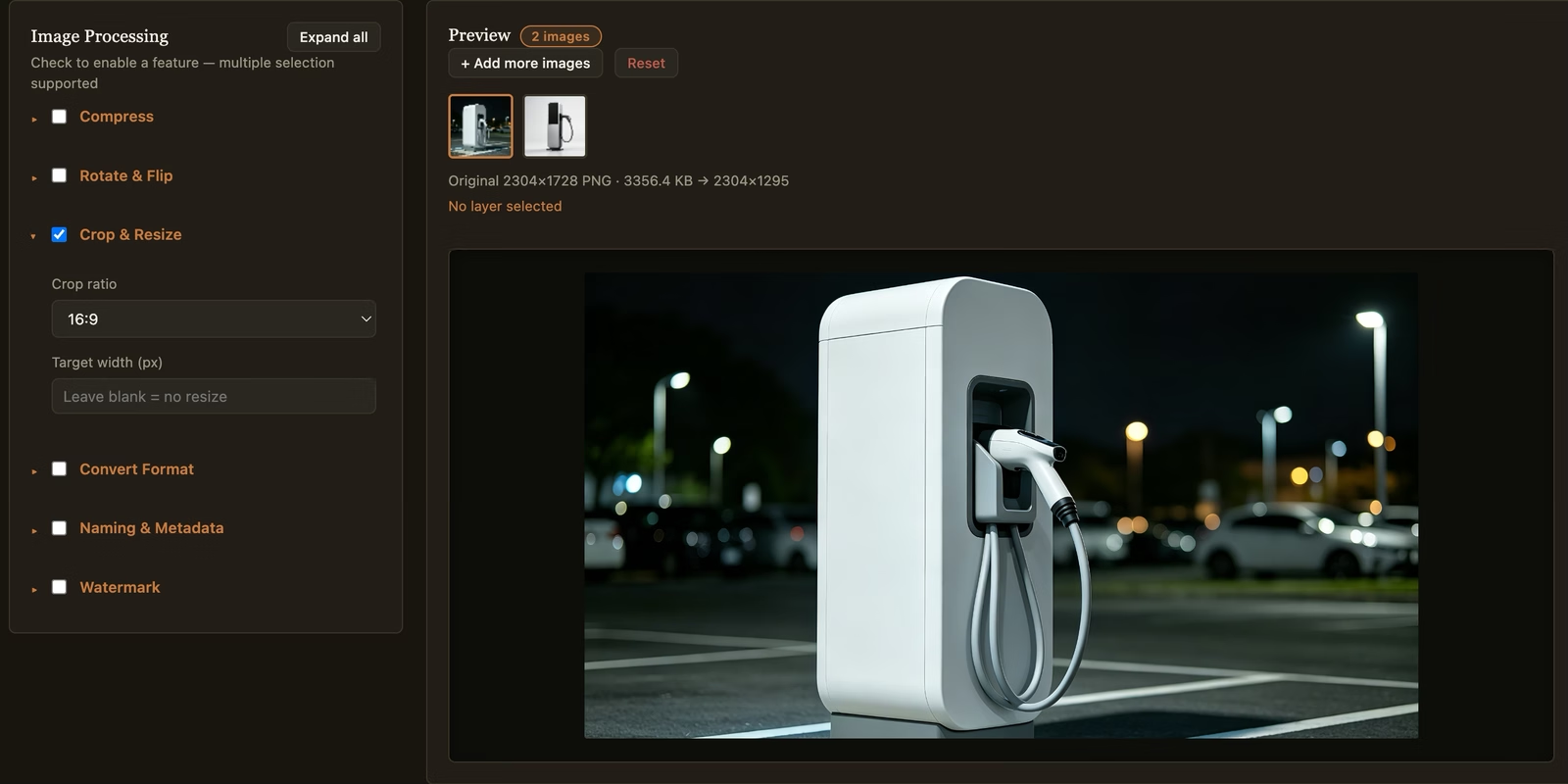
A thumbnail that’s the wrong ratio gets letterboxed or cropped by YouTube’s player and search UI, which is how a carefully composed frame ends up with the subject’s head cut off or floating in a sea of black bars once it’s live.
The actual size requirements
- Recommended size: 1280×720px, a 16:9 ratio — this is what YouTube itself recommends and what every thumbnail slot in search, suggested videos, and the watch page is built around.
- Minimum width: 640px. Below that, YouTube will still accept the upload but the thumbnail can look soft or blurry once scaled up to fill the same 16:9 slot as everyone else’s 1280px thumbnails.
- File size cap: 2MB.
- Formats accepted: JPG, GIF, PNG, or BMP.
Unlike Instagram, YouTube doesn’t auto-crop a wrong-ratio upload into shape for you — thumbnails are uploaded as a single fixed image, so if the source isn’t already 16:9, you’re relying on YouTube’s own resize behavior rather than a deliberate crop, which is exactly the “important part of the frame gets cut off at the edges” problem a manual crop avoids.
Why the safe zone matters here specifically
Thumbnails get displayed at wildly different sizes — full-size on the watch page’s suggested videos rail, but tiny on a phone’s search results. Text or a face placed right at the edge of the frame reads fine at full size and becomes unreadable or gets visually cropped by rounded-corner UI at small sizes. Keeping the subject and any text comfortably inside the frame, not touching the edges, is what actually holds up across every size YouTube renders the thumbnail at — not just the one you’re looking at while designing it.
Batch-cropping thumbnail candidates before upload
Most thumbnails start as several candidate frames or photos — different expressions, different compositions — cropped down to compare side by side before picking one. Doing that one at a time in an editor makes the comparison unfair, since each crop ends up framed slightly differently by eye.
- Import all your candidate images as a batch.
- Open Crop & Resize and select the 16:9 preset.
- Process the batch — every candidate comes out at the identical ratio and framing logic, so you’re choosing between thumbnails that differ in composition, not in how consistently each one was cropped.
What this doesn’t solve
Cropping to 16:9 fixes the ratio, not the file size cap — a large batch of high-resolution source photos can still land above YouTube’s 2MB limit after cropping. Pair the crop with a compression pass if the output files are still too large to upload.